
Appearance
Contacts
Contacts are the people you deal with at a customer company — each one tied to an Account. A contact carries its own details (email, mobile, status, the team member who owns it) separately from the account it belongs to, so the same company can have several contacts with different roles and different owners.
In this section
- Create a Contact — the New Contact form, section by section
- Contact Details — the detail view, tabs, and actions
- Field Reference — every field, limit, and validation rule
What you can do
| Action | Where |
|---|---|
| Browse the list | Contacts list |
| Search by name | Search box above the table |
| Narrow the list by any field | Filter |
| Add a contact | Create Contacts |
| Open a contact's full record | Click the contact name |
| Edit, export, or review history | Contact detail page |
| Export selected or all contacts to CSV | Selection bar, or the ⋯ menu |
The Contacts list
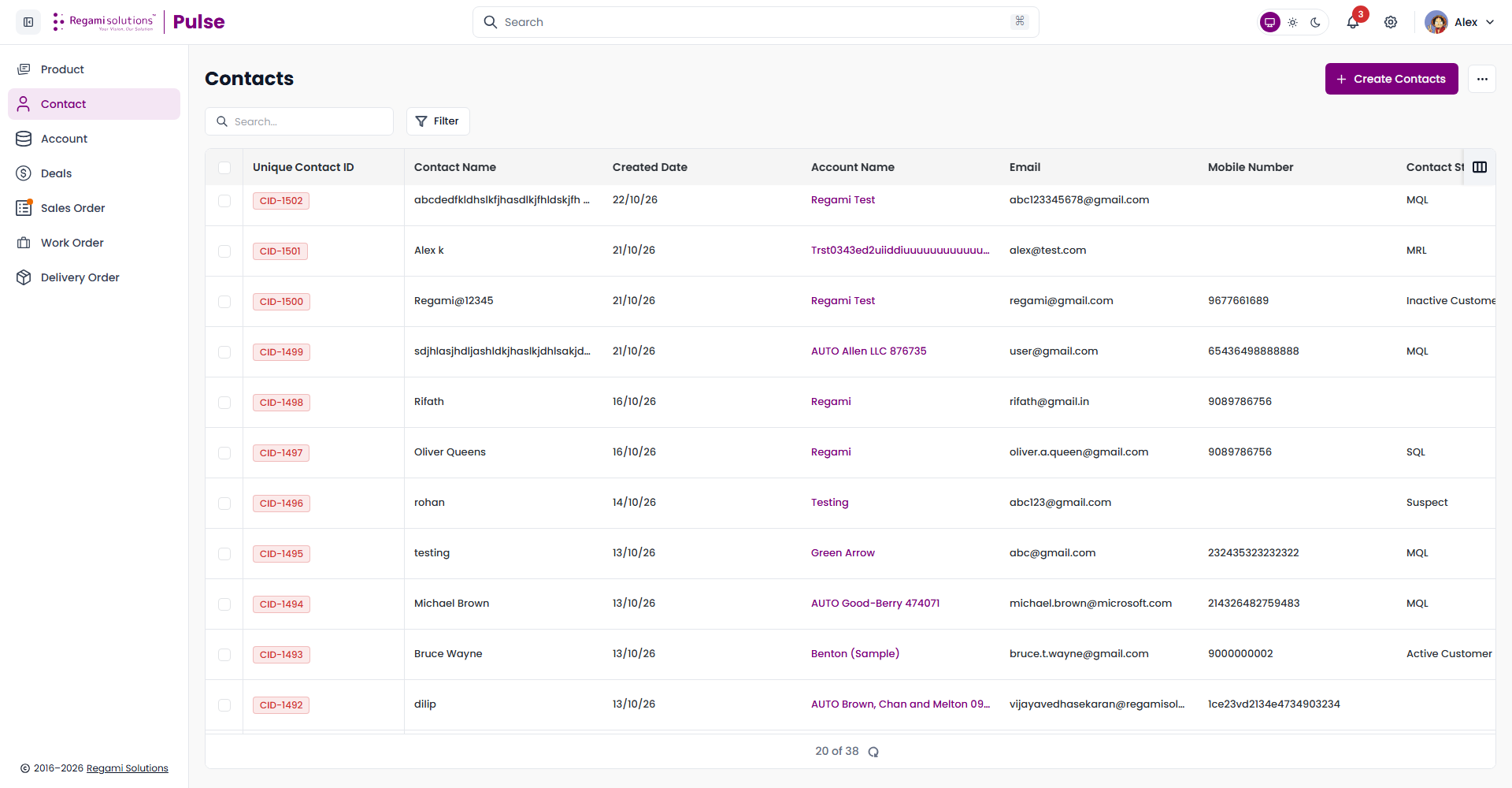
The list is the module's home screen. Each row is one contact, identified by an auto-generated Unique Contact ID (CID-####) that never changes.
| Column | Shows |
|---|---|
| Unique Contact ID | Auto-generated identifier — a read-only badge |
| Contact Name | Click to open the record |
| Created Date | When the contact was added |
| Account Name | The account this contact belongs to — click it to open the account |
| The contact's email address | |
| Mobile Number | The contact's mobile number, with country code |
| Contact Status | Where this contact sits in the funnel — see Field Reference for the full list |
TIP
Use the column-picker icon at the right of the table header to show, hide, and reorder columns — Unique Contact ID is locked and always shown. Your choice is remembered per browser.
Search
Type into the search box above the table to match on contact name. The list filters as you type.
Filter
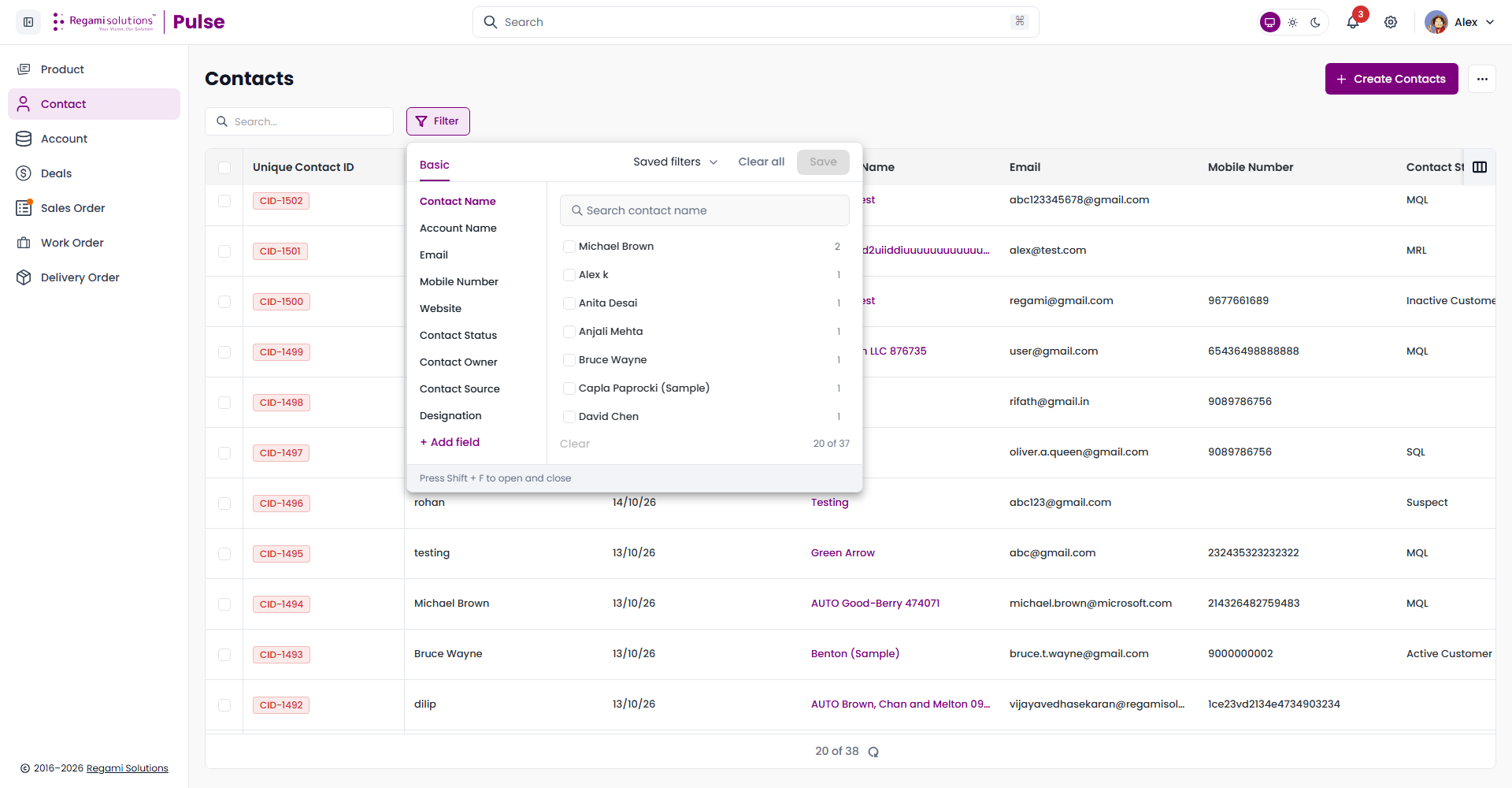
Filter opens a panel keyed to the list's own fields — Contact Name, Account Name, Email, Mobile Number, Website, Contact Status, Contact Owner, Contact Source, Designation, or any field you add with + Add field. Save a combination with Save so you can reapply it later from Saved filters, or clear everything with Clear all.
Selecting and exporting
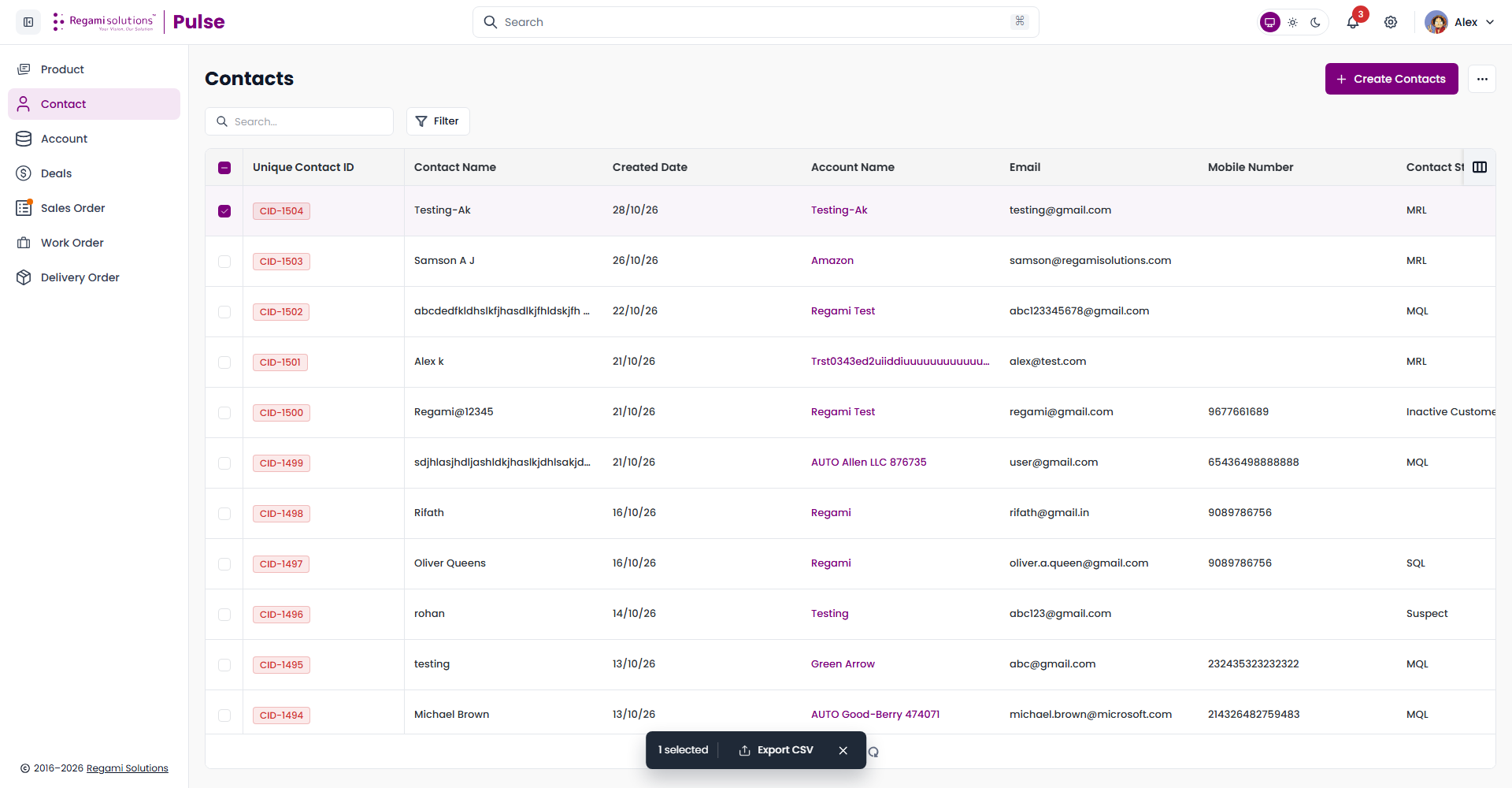
Tick one or more rows to open a selection bar with Export CSV — exporting the ones you picked. Use the ⋯ menu next to Create Contacts for Export All, which exports the full filtered list regardless of selection.
Where Contacts sits in the flow
A contact is scoped to the Account it belongs to — Account Name is required when creating one, and it can't be changed to a different account later from the Contacts list itself. A contact's Deals panel (on its detail page) lists the deals it's named on, so you can see at a glance what this person is actively involved in without leaving the record.
Related
- Create a Contact — fill in the New Contact form correctly first time
- Field Reference — every validation rule in one table
- Accounts — the company record every contact belongs to
- Deals — where a contact is named as the deal progresses