
Appearance
Sales Orders
A sales order records what a customer has bought. It holds the commercial detail of the order — the account, the line items, the value, the payment schedule — and drives everything that follows: work orders to build the goods, delivery orders to ship them, and invoices to bill them.
Video demonstrations
Watch: The sales order list, the column manager and the filters
Watch: Submitting an empty form, and reading the errors it comes back with
Watch: A tour of all nine detail tabs
Watch: Copying a contact's email, then opening the deal the order came from
Watch: The status lifecycle, the addresses and the table — then the deal the line items load from
Watch: The five summary cards, the payment schedule and the attachments
Watch: The change orders tab and the requests raised against the order
Watch: The counters, the work order table and its action column
Watch: The delivery counters and the delivery orders on the sales order
Watch: The invoices table and the Generate Invoice gate
Watch: The document list, the quota line and where each file came from
Watch: The activity feed, the period filter and the user filter
In This Section
- Create a Sales Order — the New Sales Order form
- Approvals & Locks — submitting for approval, and what locks while it waits
- Sales Order Details — the record and its nine tabs
- Overview Tab — terms, contact persons and the linked deal
- Line Items — the products on the order, and where they come from
- Finance — the payment schedule and its change requests
- Change Orders — changing a confirmed order
- Work Order — building the goods
- Split & Merge — splitting and merging work orders
- Delivery — shipping the goods
- Invoices — billing the order
- Documents — files held against the order
- History — who changed what, and when
- Field Reference — every dropdown value and every validation rule
Sales Orders Table
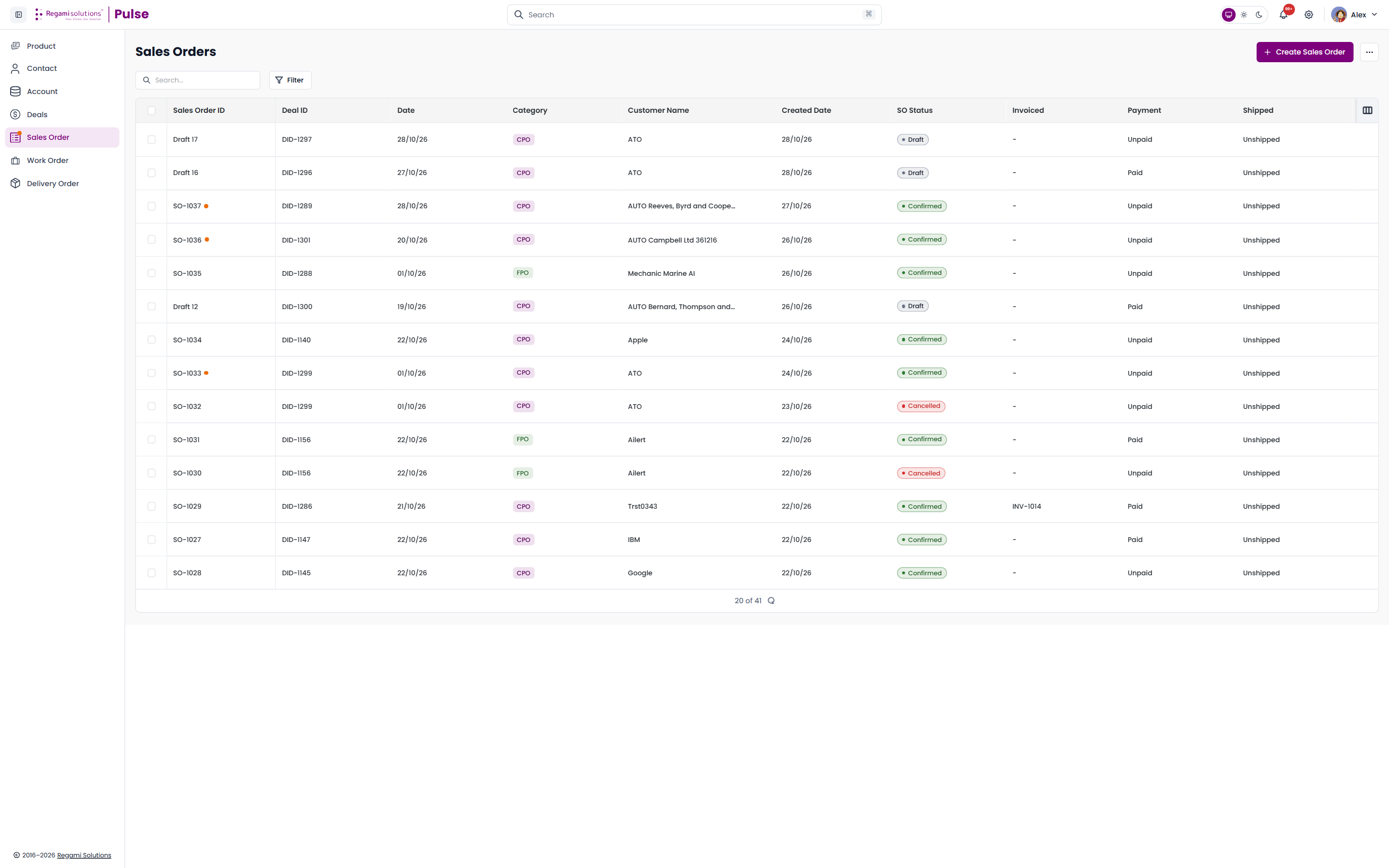
The table lists every sales order in the workspace. Each column can be sorted, and each has its own column menu for ordering and visibility.
Columns Shown by Default
Ten columns are visible when you first open the list.
| Field | Description |
|---|---|
| Sales Order ID | The order reference. Drafts show as Draft n until confirmed. |
| Deal ID | The deal the order was raised from. |
| Date | The sales order date. |
| Category | The order category — CPO or FPO. |
| Customer Name | The account the order belongs to. |
| Created Date | The date the record was created. |
| SO Status | The current stage of the order. |
| Invoiced | The invoice numbers raised against the order, such as INV-1014. Where there are several, the extras collapse into a +n chip. |
| Payment | Paid or Unpaid. |
| Shipped | Shipment state. |
The Shipped column always reads "Unshipped"
This column does not currently read the order — it returns Unshipped for every row, including orders that have been fully delivered. Use the Delivery tab to find out whether an order has actually shipped. This is a known defect, logged as BUG-44.
The Sixteen Hidden Columns
Sixteen further columns exist and are hidden by default. Add them from the column manager.
| Column | Description |
|---|---|
| Deal Name | The name of the deal behind the order. |
| Order Type | Services or Product. |
| SO Owner | The person accountable for the order. |
| SO Source | Online or Manual. |
| CRD | Customer requested date. |
| SO Value | The order total. |
| Payment Terms | When payment falls due. |
| Shipment Terms | The Incoterm the order ships under. |
| Carrier | The shipping carrier. |
| Cost Centre | The cost centre the order is booked against. |
| Biz Category | The business category. |
| PO Number | The customer's own purchase order number. |
| Store ID | The store reference. |
| Total SO Value | The order total including later revisions. |
| Invoice Number | The invoice reference. |
| Bank | The bank recorded against payment. |
26 columns in total — 10 shown, 16 hidden. Your choice of columns is remembered between visits.
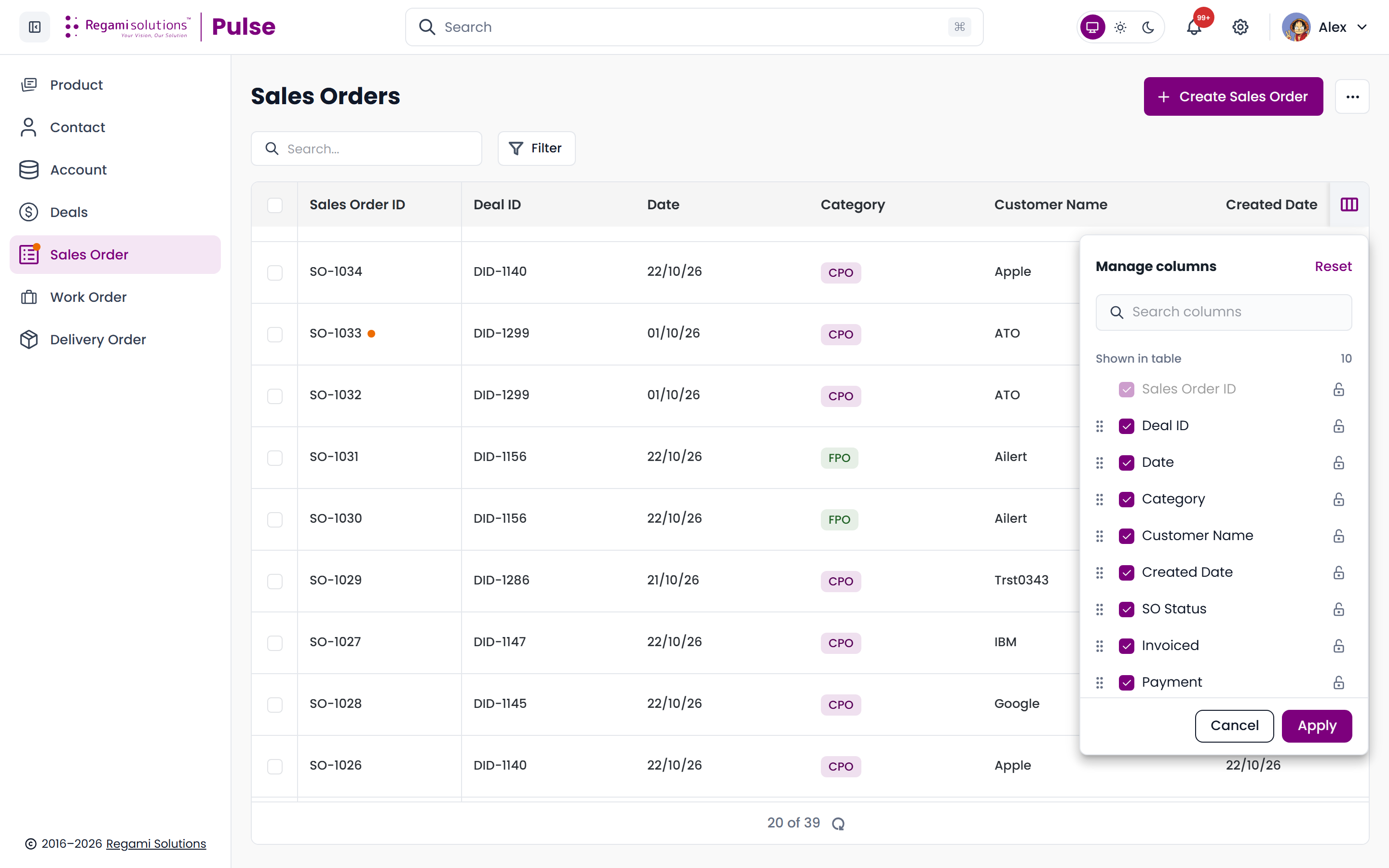
List Controls
Four controls sit around the table and are easy to miss.
| Control | What it does |
|---|---|
| Selection checkboxes | The leftmost column selects rows for bulk actions. |
| Pagination | The footer shows the page size and the total, such as 20 of 39. |
| Column manager | Shows, hides and reorders any of the 26 columns. |
| Live refresh | The list refetches itself every 30 seconds, so a colleague's new order appears without a manual reload. |
What Needs Your Attention
Some rows carry a small warning dot beside the Sales Order ID. Hovering it opens Needs your attention — the list of what is still outstanding on that order, each line linking straight to the tab where it is done.
| Item | Means | Opens |
|---|---|---|
| Needs your approval | You're an approver. Approve or reject so work can start. | Overview |
| Awaiting approval | Submitted for approval. Work can't start until an approver signs off. | Overview |
| Change requests needing your approval | A change request is waiting for your decision. | Change Orders |
| Change requests awaiting approval | A change request is waiting for its approvers to decide. | Change Orders |
| Delivery orders needing your approval | A delivery order is waiting for your decision. | Delivery |
| Delivery orders to approve | Delivery orders need approval before the goods can ship. | Delivery |
| Delivery change request needing your approval | A packing change request is waiting for your decision. | Delivery |
| Work orders to create | Some items have no work order yet. Create one so production can begin. | Work Order |
| Invoices to add | No invoice added yet. Add one to keep billing on track. | Invoices |
The dot is yours, not everybody's
This is the behaviour that changed. The dot used to appear on every order in the workspace that had anything outstanding, whoever owned it — so a long list was a wall of dots that told you nothing.
It is now scoped to you. A dot appears only when:
- You are the SO Owner of that order, and it has something outstanding; or
- Something on it is waiting for your decision — the order's own approval, a change request, a delivery order, or a packing change request.
An order somebody else owns, with nothing waiting on you, now shows no dot at all.
Two wordings, two meanings
"…needing your approval" means the decision is yours, now. "…awaiting approval" means it is with someone else and you are only being kept informed — you will only ever see that wording on an order you own. Where both would apply, the personal one wins and replaces the generic one.
Filters
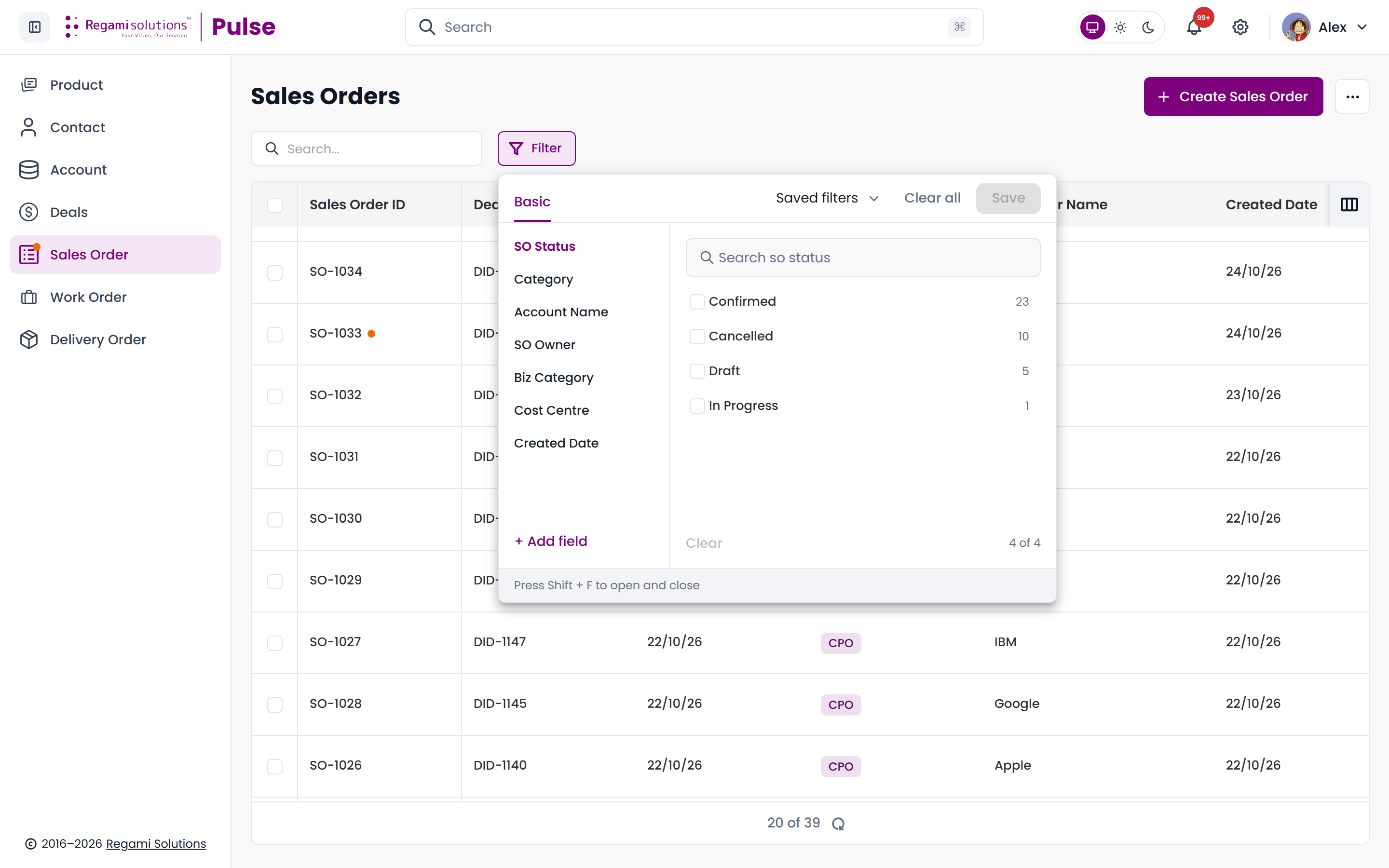
Nineteen filter fields are available. Seven are offered up front; the rest are added from the filter panel.
Shown by Default
SO Status · Category · Account Name · SO Owner · Biz Category · Cost Centre · Created Date
The Twelve Further Filters
| Filter | Notes |
|---|---|
| Order Type | Services or Product. |
| SO Source | Online or Manual. |
| Payment Terms | One of the eight payment terms. |
| Shipment Terms | Displays the full Incoterm, e.g. CPT – Carriage Paid To. |
| Carrier | The shipping carrier. |
| Bank | The bank recorded against payment. |
| Billing City | From the account's billing address. |
| Billing State | From the account's billing address. |
| Billing Country | From the account's billing address. |
| Mailing City | From the account's shipping address. |
| Mailing State | From the account's shipping address. |
| Mailing Country | From the account's shipping address. |
Every dropdown value is listed in the Field Reference.
Order Statuses
There are nine statuses. Seven form the main sequence; Rejected and Cancelled are exits that can be reached from outside it.
The Main Sequence
| Status | What it means | What moves it on |
|---|---|---|
| Draft | Created but not yet submitted. | Submitting it for approval |
| Confirmed | Submitted and waiting for approval. | An approver approving it |
| In Progress | Approved, and released to work order planning. | Work orders being created |
| In Production | Work orders are building the goods. | Production completing |
| Ready to Ship | Production complete, QA passed. | Raising a delivery order |
| Shipped | The goods have left. | Delivery despatched |
| Invoiced | The order has been billed. | — |
The Two Exits
| Status | What it means |
|---|---|
| Rejected | An approver turned the order down. An order goes from Draft straight to Rejected — it does not pass through the other stages. |
| Cancelled | The order will not be fulfilled. Cancelling is available from the record menu and is not a step in the sequence. |
"Confirmed" and "In Progress" mean the opposite in the API
The portal and the API use these two labels the other way round:
| What you see in Pulse | What the API and exports call it |
|---|---|
| Confirmed (awaiting approval) | In Progress |
| In Progress (approved) | Confirmed |
If you are reading an API response, a CSV export or an audit log next to this screen, translate between the two. The backend also uses Accepted and QA, both of which mean the order has been approved.
Cancelling an order releases its deal, so that deal can be used for a new sales order. The same is true of a rejected order. See One Deal, One Sales Order.
What Happens After an Order Is Raised
- The order is created as a Draft — see Create a Sales Order.
- It is submitted for approval and locked while it waits — see Approvals & Locks.
- Once approved, work orders are created to build the goods — see Work Order.
- Finished goods are shipped on a delivery order — see Delivery.
- Payment is tracked on the payment schedule, and invoices are generated against it — see Finance and Invoices.
Related
- Create a Sales Order
- Field Reference
- Deals — where every sales order begins