
Appearance
Work Order
A work order is the instruction to build or prepare what a customer has ordered. It sits between the Sales Order (what was sold) and the Delivery Order (what was shipped), and it is where production actually happens — serials are captured, photos are taken, tasks are assigned to teams, and software deliverables are approved.
In this section
- Create a Work Order — where work orders come from
- The List and Timeline — the Gantt view, columns and filters
- Work Order Details — all five tabs, field by field
- Actions — Watchers, Share, Status, Generate DO, Split and Merge
- Who Can Do What — owner, member roles and the five restricted controls
Getting there
Work Order in the left sidebar, or go straight to /work-orders. Opening a work order takes you to /work-orders/{id}/order-details, and each tab has its own address — so a link you paste into a message opens on the right tab.
Where a work order comes from
There is no "Create Work Order" button in this module
The Work Order list has no create action. Its only controls are search, filter, the timeline scale, column tools and refresh. Work orders are created from the Sales Order, on that order's own Work Order tab, once the items have been approved for production.
See Create a Work Order for the full path.
How it fits together
| Step | Record | What it means |
|---|---|---|
| 1 | Sales Order | What the customer bought, and the committed date (CRD) |
| 2 | Approval | Line items are approved for production |
| 3 | Work Order | One or more build instructions created from those approved items |
| 4 | Production | Tasks run per team; serials and photos are captured |
| 5 | Delivery Order | Generated from the work order once QA has passed |
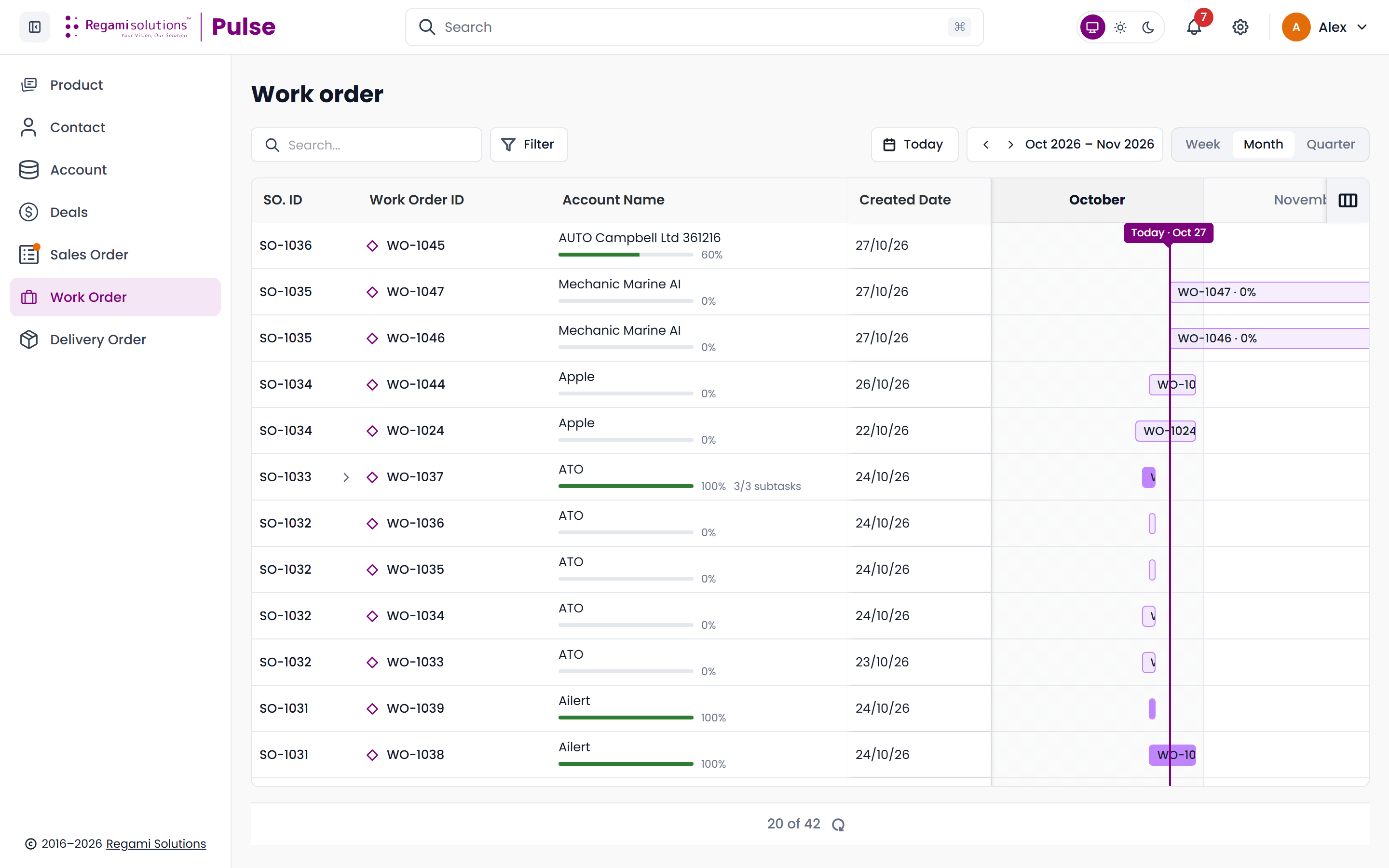
One sales order can have several work orders — the demo shows SO-1032 with four (WO-1033–WO-1036). Each one keeps its own dates, owner, tasks and progress.
What you can do
| Action | Where |
|---|---|
| See everything in progress on a schedule | The timeline on the list page |
| Search, filter, sort and choose columns | The list toolbar |
| Open a work order and read its full record | Click the Work Order ID |
| Capture serial numbers and photos | Items & serials tab |
| Approve software deliverables | SW Deliverable tab |
| Assign and track work per team | Tasks tab |
| See who changed what, and when | History tab |
| Follow a work order, or share it | Watchers and Share |
| Move it through its lifecycle | Status menu |
| Raise the delivery | Generate DO |
Five of these are restricted to the work order's owner
The Status menu, the Owner field, Generate DO (sending it) and creating or editing a software deliverable are limited to the order's owner and to Admins — your module permissions alone do not unlock them. Everything else on the list is open to anyone with Work Orders access. See Who Can Do What.
Statuses
Six statuses can be picked from the status menu:
Not started · In progress · In hold · QA review · Ready for delivery · Completed
Two more are set by the system and can never be chosen — Cancelled and Merged. Eight in total.
The statuses are not a fixed chain, and the list is configurable
The menu "follows the workflow like Jira: a status offers only the moves the workflow allows". A status with nowhere left to go shows "No further status from here".
The list itself is seeded into the database once, and the stored list is then the source — so a workspace can hold statuses beyond the six above. The menu is built from what the server returns, not from a fixed list in the app.
Completing a work order is blocked by three things, not one
The work order can be moved to Completed once the delivery order is approved, every SW deliverable is approved and every serial is verified.
| Blocker | What it says |
|---|---|
| Approve SW deliverables | n of m SW deliverables are not approved |
| Verify serials | n serials are not verified yet |
| Get the delivery order approved | The delivery order is not approved yet |
Pressing Completed while any is open opens the "Not ready to complete yet" dialog, headed "Still to complete before the work order is done", with an n open count and a jump link for each. Full detail in Actions.